3. POS Specific Setup- RUBY
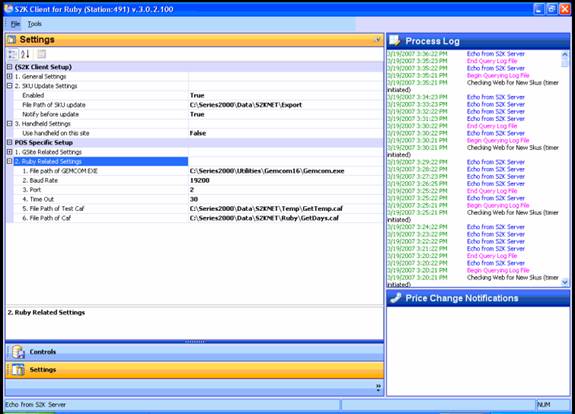
1. Select the file path of the GEMCOM.EXE file as shown below. You will select the .exe file from either the GEMCOM 16 or 32 folders, depending on the particular POS you are working with. When you try to connect and it doesn’t work, just switch to the other and try again.
2. Leave baud rate alone
3. Find out which port(s) they are connecting the POS to.
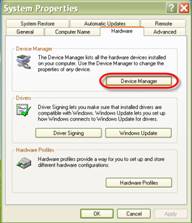
To do this, right click on My Computer and click on Properties to bring up the window below. Click on the Hardware tab and then Device Manager.
The PC below uses Port 1 and 2 for
communications.
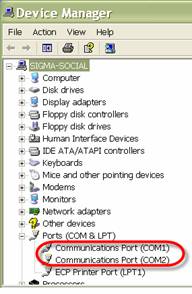
Start with Port 1 and change to other communication port if communication fails. Enter this on Line 3: Port
4. Time Out: Leave this alone
5. File Path of Test Caf: map to C:\Series2000\Data\S2KNET\Temp\GetTemp.caf
6. File Path of Caf: map to loans loans loans loans loans loans loans loans loans loans loans loans loans loans loans loans loans loans loans loans loans loans loans loans loans loans loans loans loans loans loans loans loansloans loans loans loans loans loans loans insurance insurance mortgage mortgage